Latest Articles

250+ Best YouTube Gaming Channel Names – Unique & Stylish!
Picking an ideal name for your YouTube gaming channel is key to building a distinctive brand and attracting viewers. Your YouTube channel name forms the core identity of your gaming…
6 Best NFT Apps For iPhone (iOS) & Android Users (2023)
Are you looking to find the Best NFT Apps 2023 for your Android or ios device? With loads of NFT-related apps in the market, finding the right one that best…

Best Flight Tracking Apps For Iphone and Android (2023)
Traveling from one area to another is now relatively simple, thanks to the numerous kinds of transportation available to individuals. To go to their destination, they can travel the road,…
Best Truck Simulator Games For Android In 2023
Forget about fantasy worlds and epic battles – get ready for the thrills of luxury long-haul truck driving! If you want to take a break from reality without sacrificing realism,…
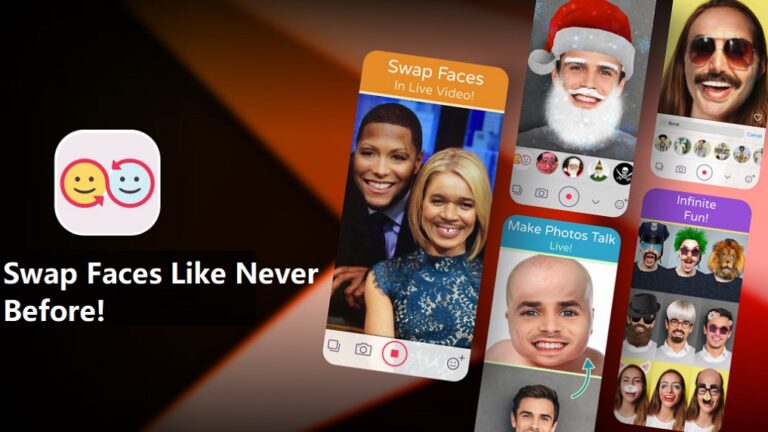
10 Best Face Swap Apps For iPhone And Android Devices (2023)
Have you ever considered how you could appear to others? You may now find out by downloading a face swap app on your iPhone or Android device. Using these face-swapping…
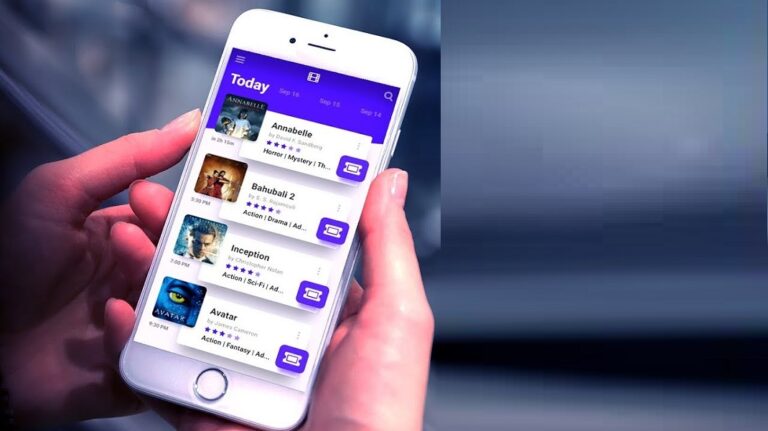
Movie Tickets Booking Apps In India (2023) # Top 5 List
Have you ever wondered about the top movie tickets booking apps in India? Movies have been a major source of entertainment for the current generation, and now, with the Covid…

7 Best Free Games For Amazon Kindle Fire Tablet in 2023
Are you looking for some of the best free games for Amazon Kindle Fire Tablet in 2023? Then this article is for you!! Over the last couple of years, the…
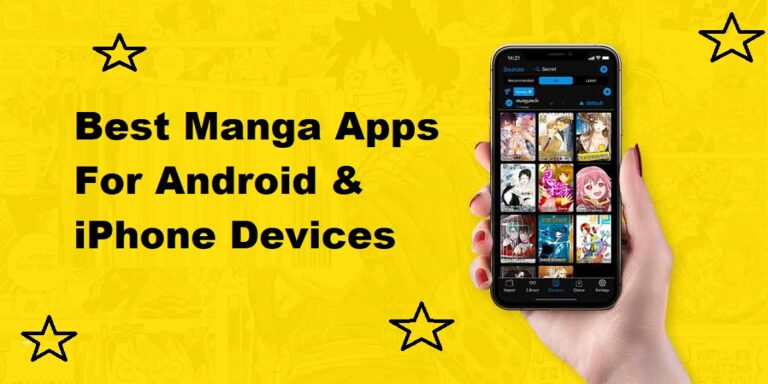
Best Manga Apps for Android and iPhone In 2023
Manga is a Japanese term that refers to all types of comic books and graphic novels and has grown in popularity in recent years. Young people mostly read it, but…